1 Quick Guide: Synesis Explorer (VS Code)
Goal: help you install and use the extension to navigate your Synesis files (.syn, .synt, .synp, .syno) easily.
1.1 What the extension does
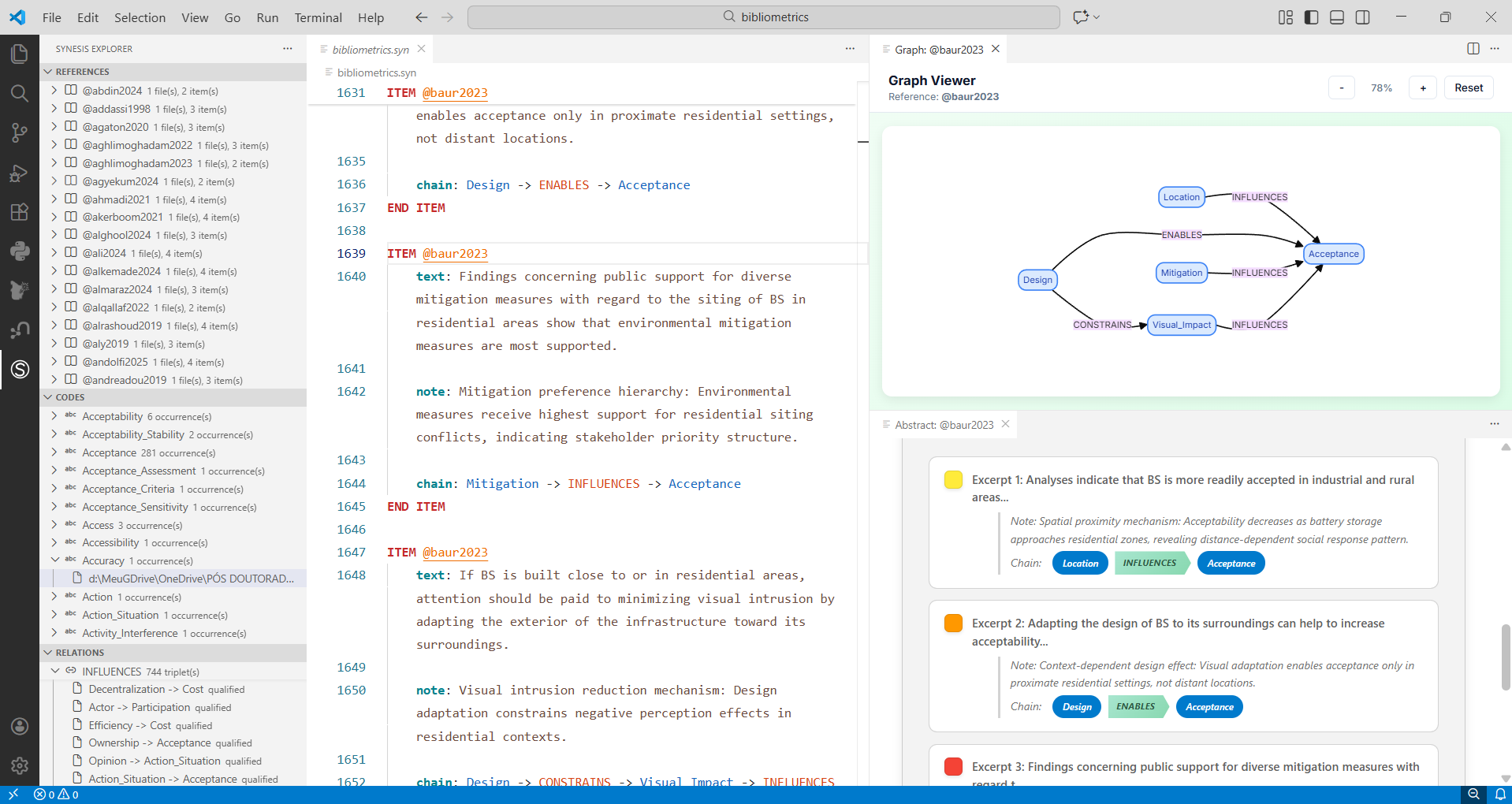
- Shows your references, codes, and relations in side panels
- Opens a relationship graph and the abstract summary of references
- Helps you find excerpts easily
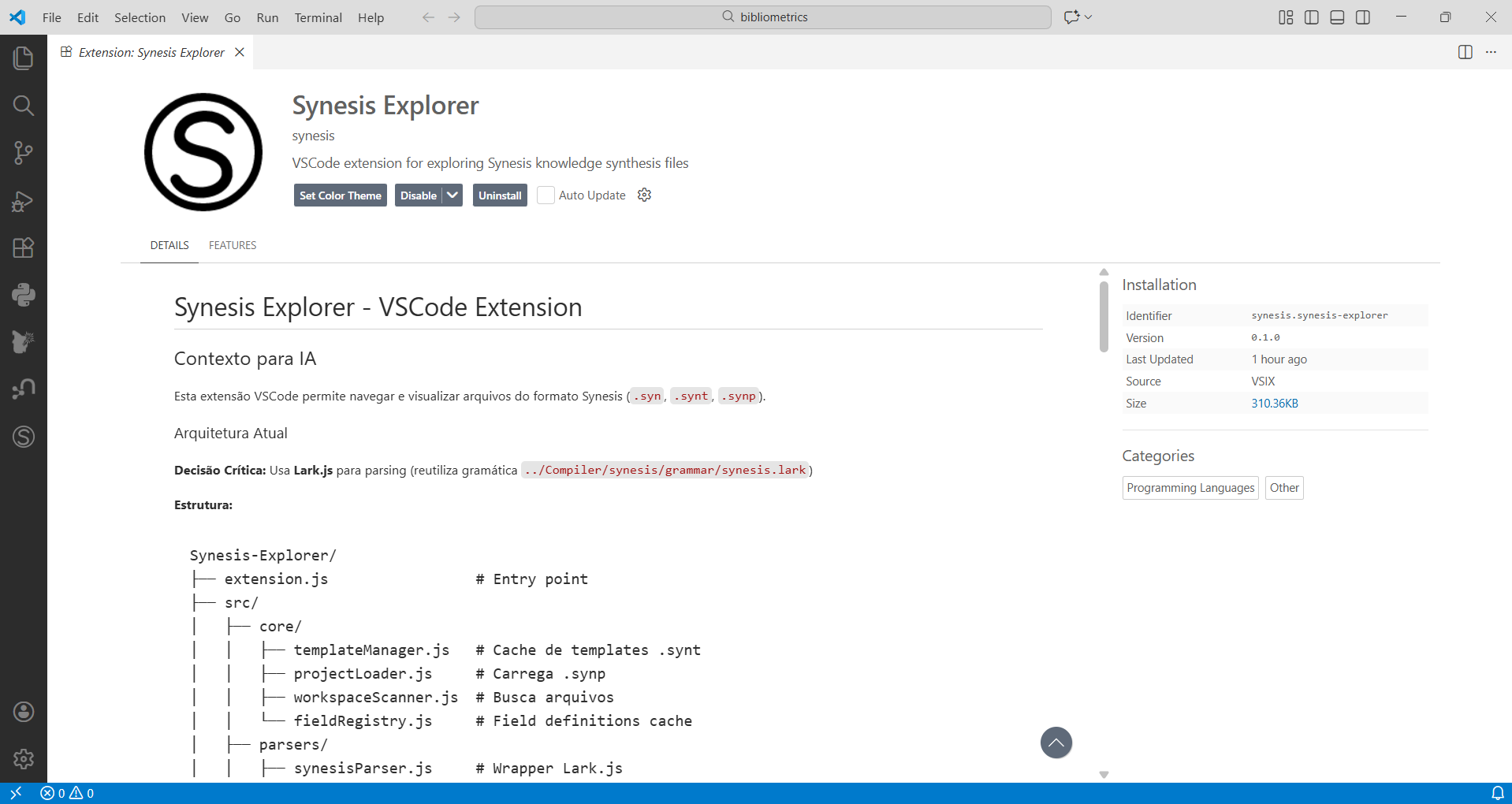
1.2 Basic requirements
- VS Code installed
- Synesis files on your computer
1.3 Installation (VSIX file)
- Open VS Code
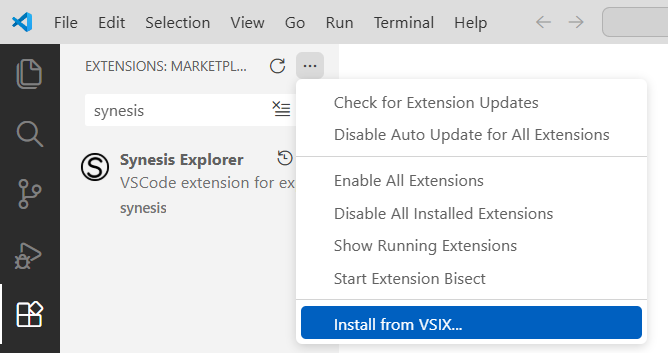
- Click on the extensions icon (sidebar)
- Click on the three dots (menu) and choose “Install from VSIX…”
- Select the
.vsixextension file - Wait for installation and restart VS Code if prompted
1.4 How to open your project
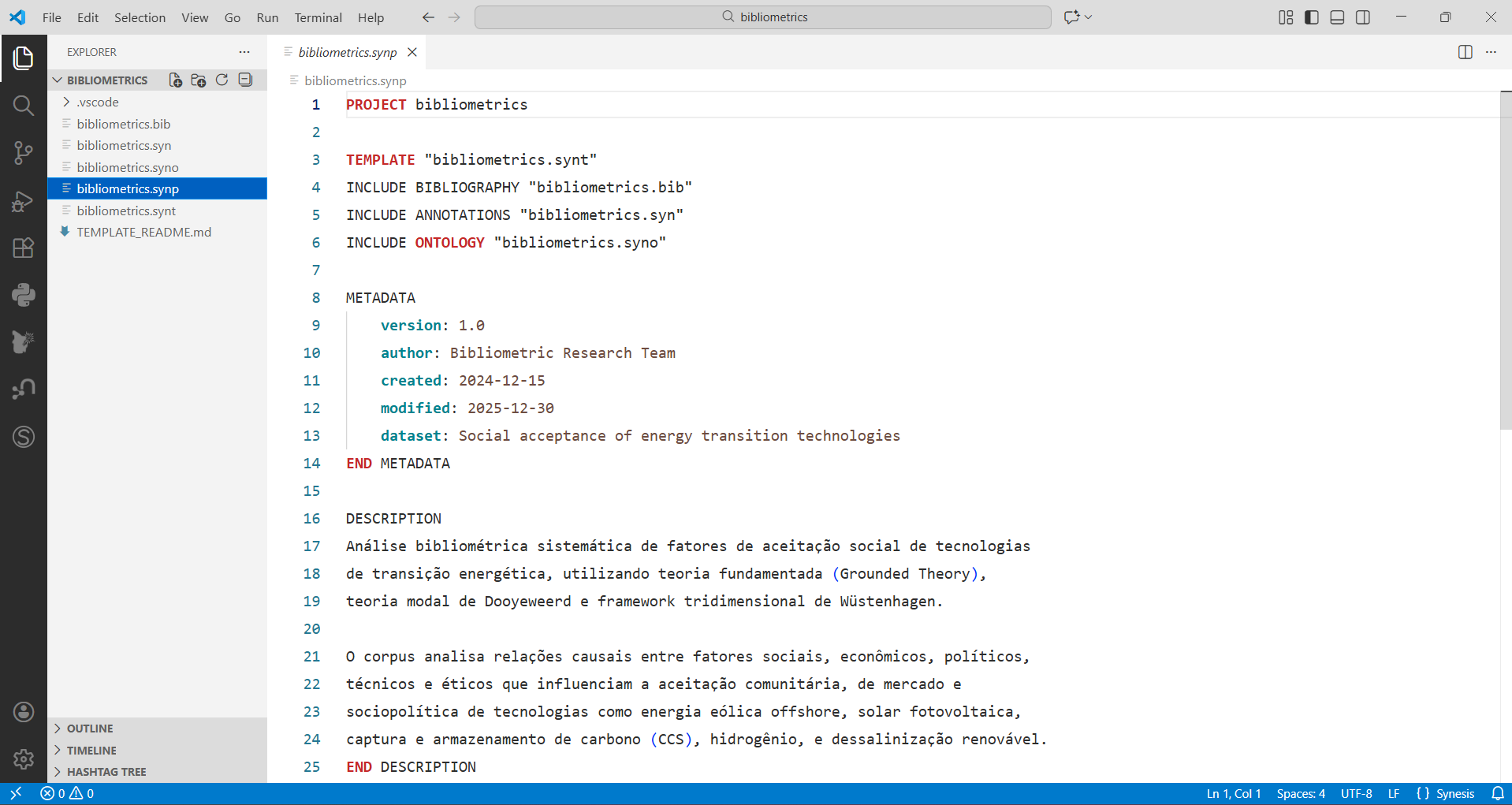
- Open your project folder in VS Code
- Make sure your
.synfiles and the.synpproject are in the folder
1.5 Where to find Synesis Explorer
- On the left sidebar, click the “Synesis Explorer” icon
- You will see three sections:
- References
- Codes
- Relations (appears when there are relations)
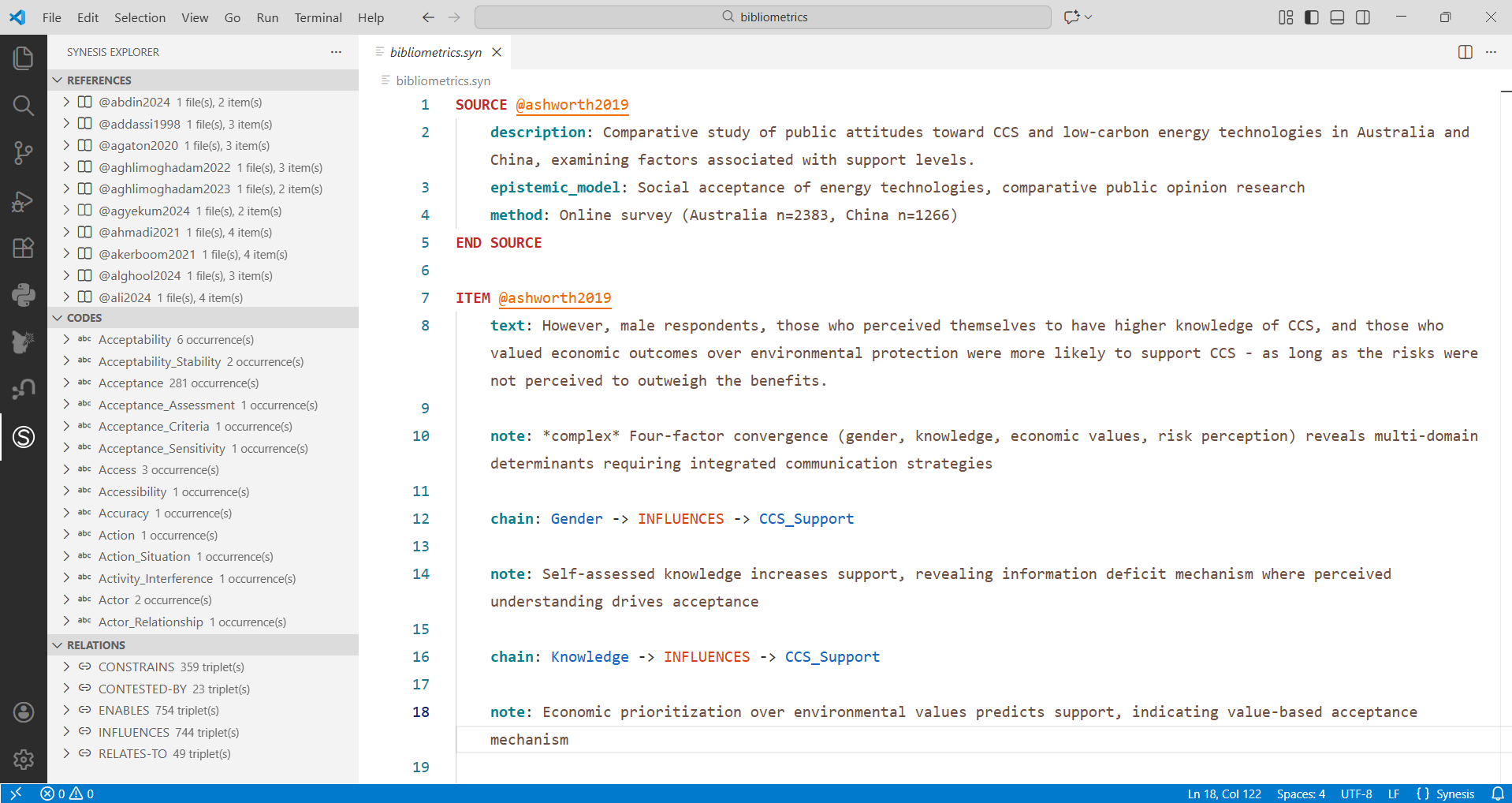
1.6 Using the Explorers
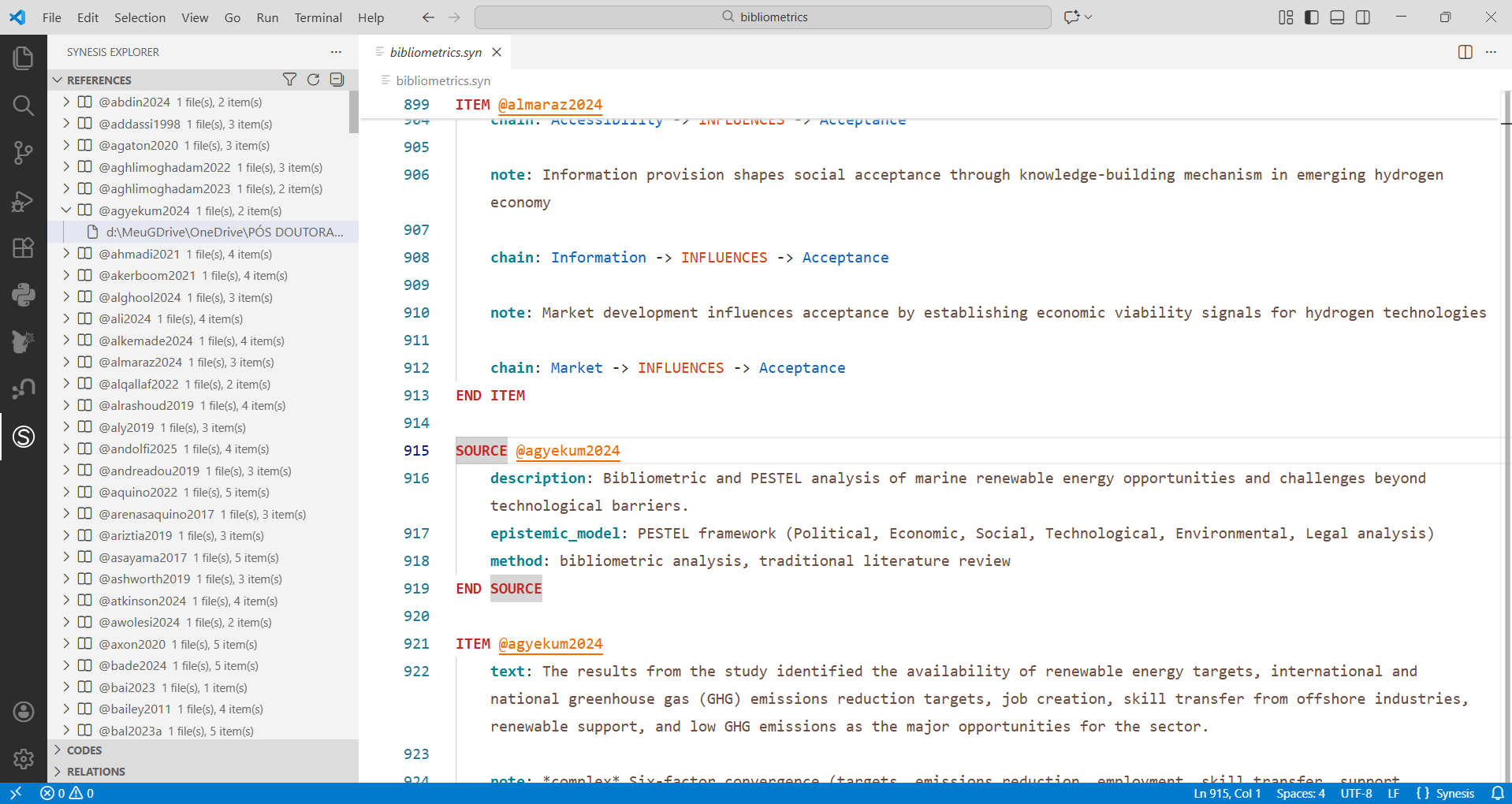
1.6.1 References
- Lists your sources (SOURCE)
- Use the refresh button when files change
- Use the filter to quickly find a reference
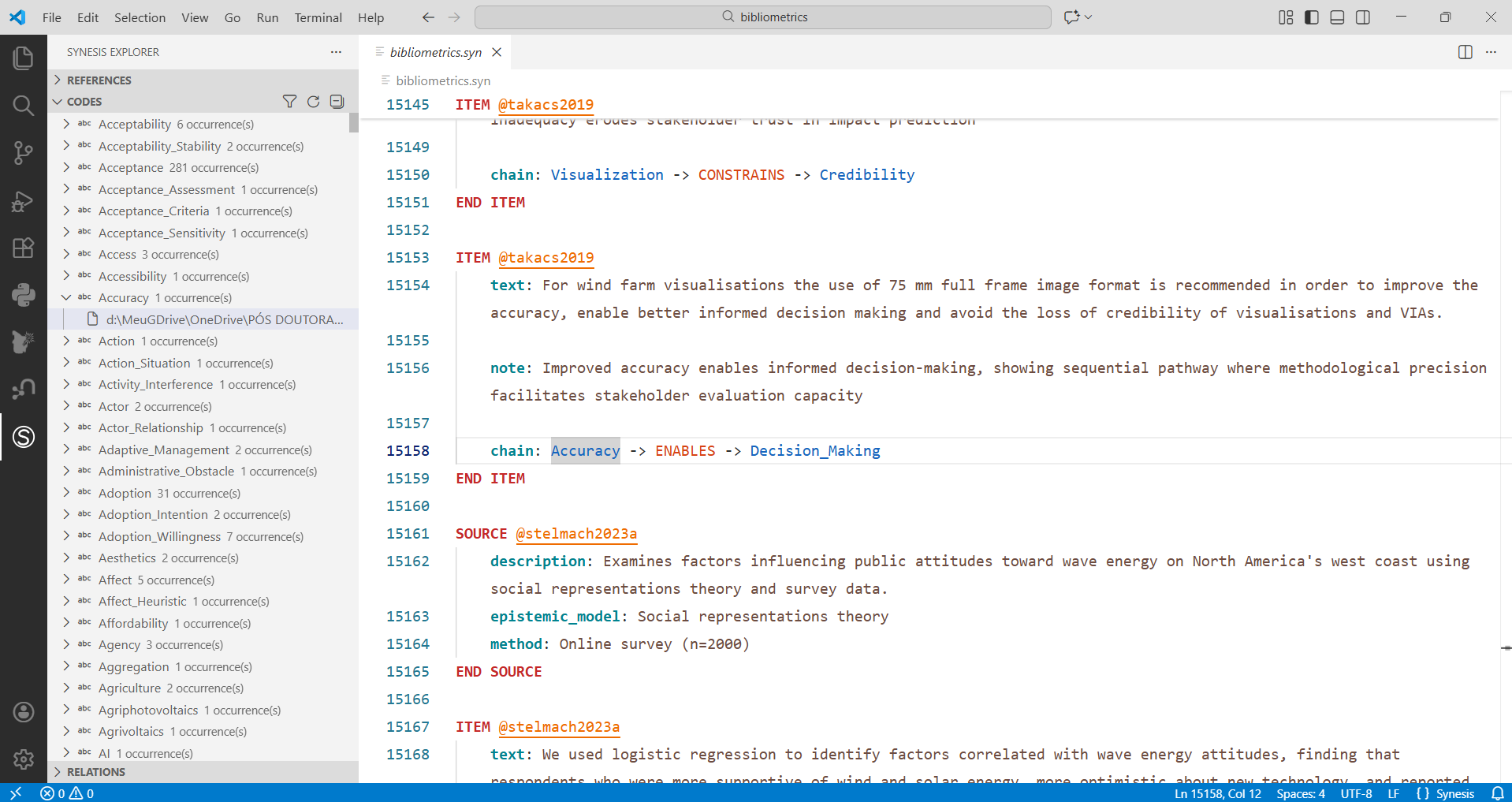
1.6.2 Codes
- Shows codes found in your data
- Use refresh and filter the same way
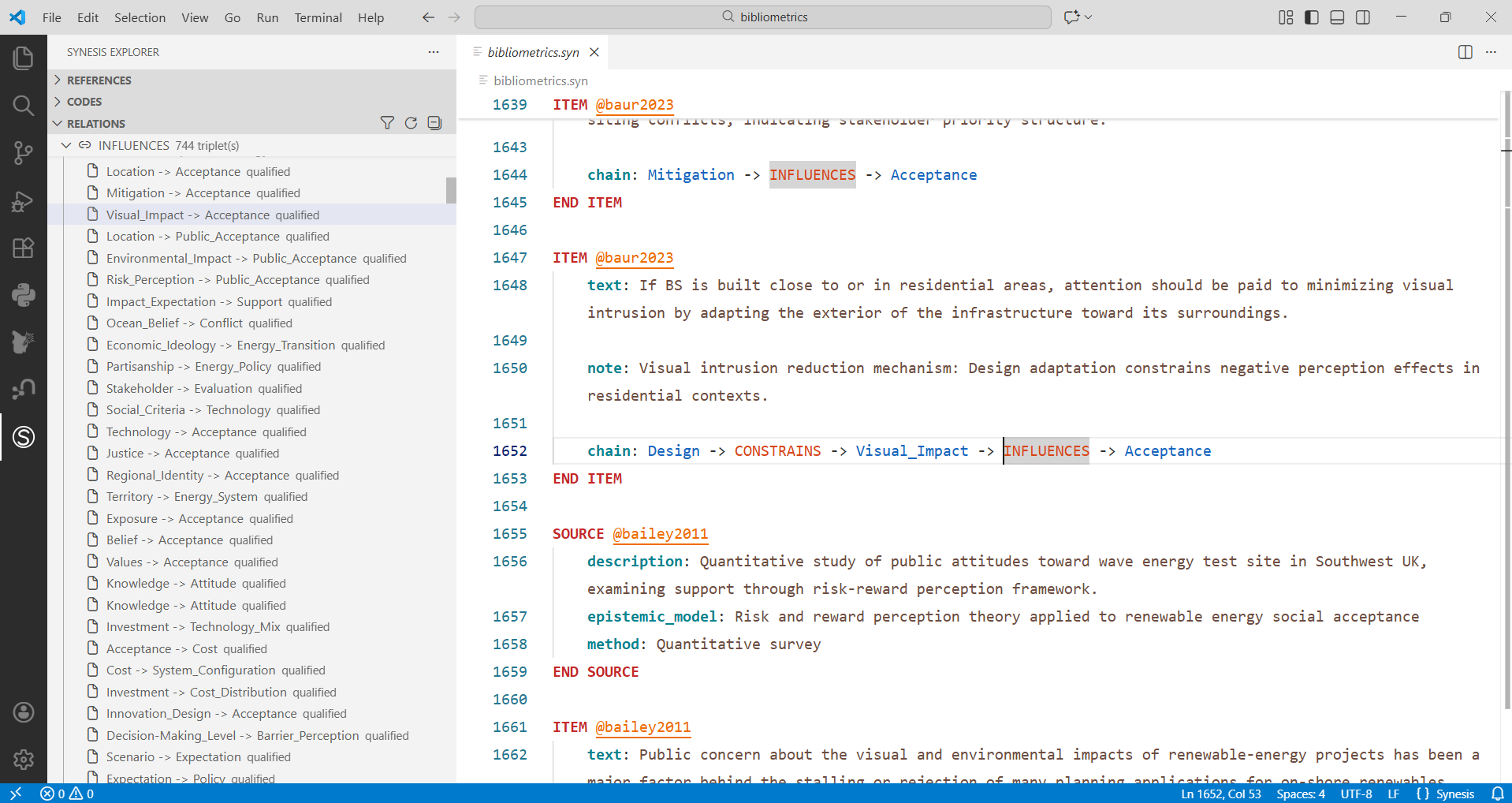
1.6.3 Relations
- Shows relations (chains) found
- If it doesn’t appear, check if there are
chain:fields in annotation files (.syn)
1.7 Using the Viewers
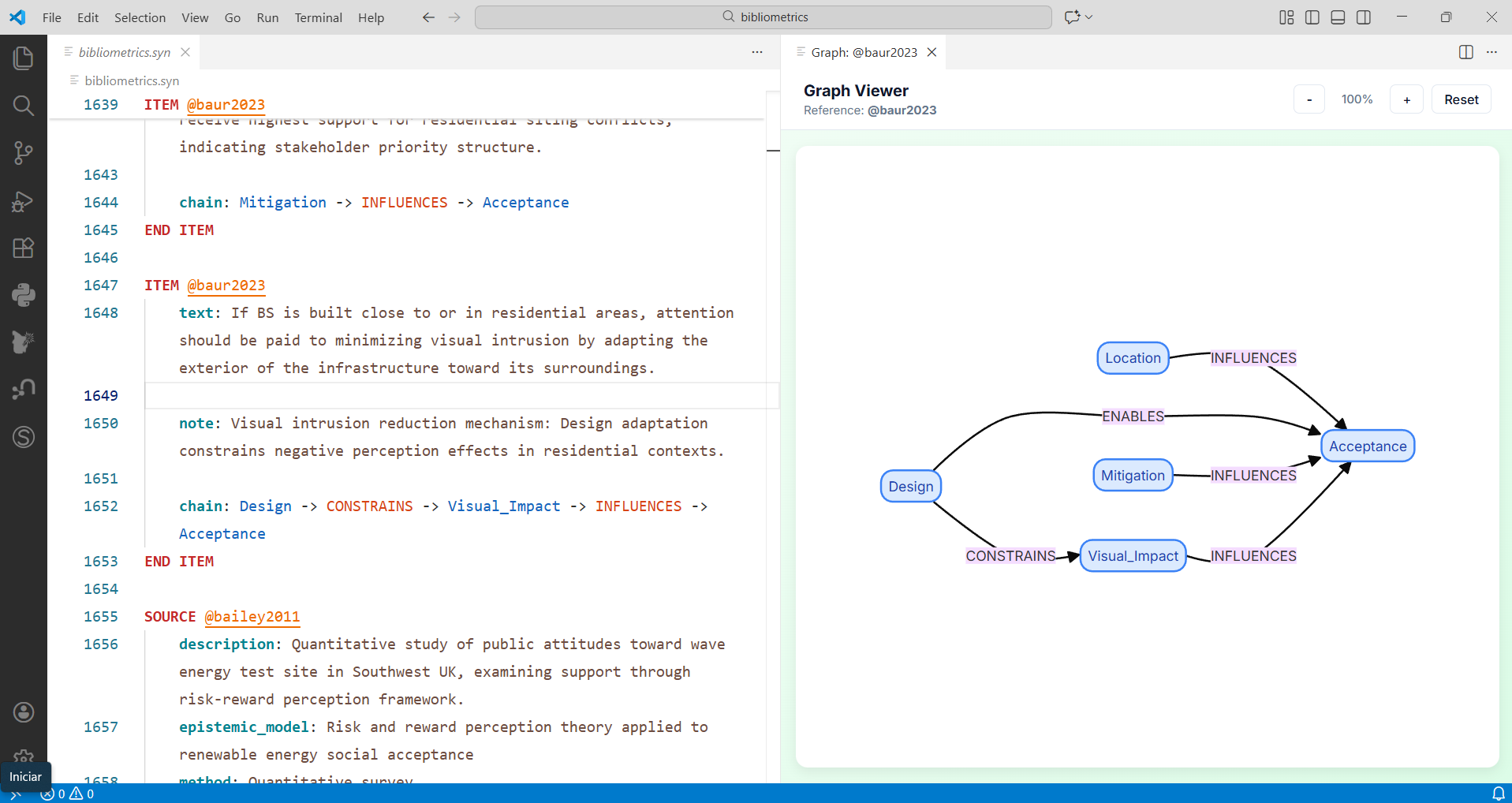
1.7.1 Graph Viewer
- Shows a graph of relations
- Shortcut:
Ctrl+Alt+G(Windows/Linux) orCmd+Shift+G(Mac)
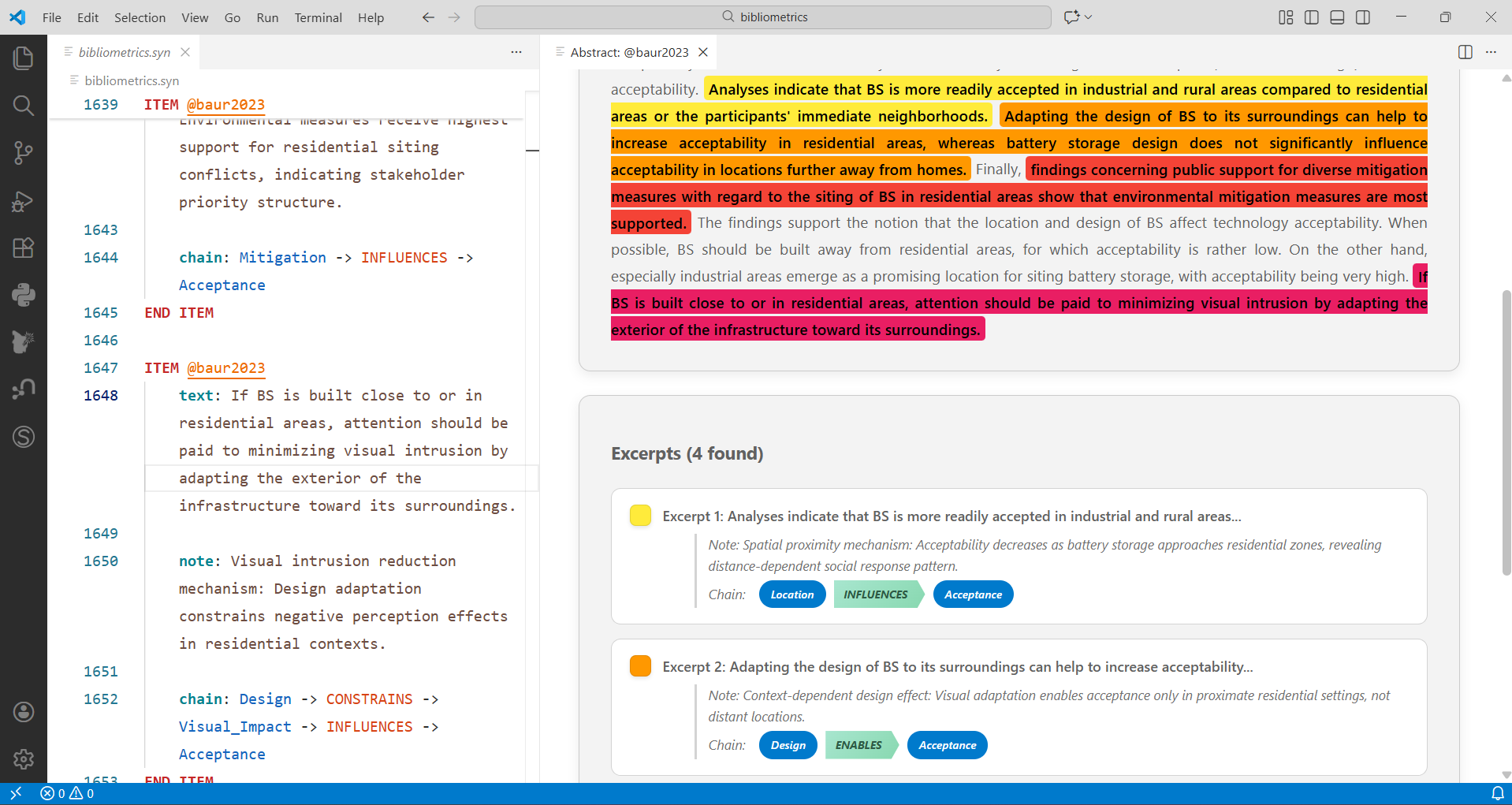
1.7.2 Abstract Viewer
- Shows the abstract of BibTeX references
- Shortcut:
Ctrl+Shift+A(Windows/Linux) orCmd+Shift+A(Mac)
1.8 Quick tips
- If something doesn’t update, click refresh
- Word Wrap is automatically enabled for easier reading
- Use the filter to reduce large lists
1.9 Common problems
I don’t see anything in the panel - Check if the project folder was opened in VS Code - Check if there are .syn files in the folder
Relations don’t appear - Check if there are chain: lines in the files
1.10 Ready to use
With this, you can now navigate, filter, and visualize your Synesis data directly in VS Code.